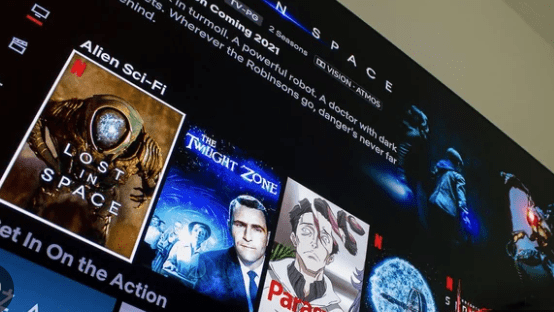
Netflix has quietly removed the option to cast movies and shows from your phone to most TVs, and a lot of users are frustrated. According to Netflix’s updated help page (first spotted by Android Authority), the streaming platform “no longer supports casting from mobile devices to most TVs and streaming hardware.”

Instead, Netflix now wants users to navigate the app directly using their TV remote.
Users Report Sudden Removal
Several users say the feature disappeared without warning. One Reddit user mentioned that Netflix removed casting support on November 10th, and the app didn’t give any alert or explanation. Even people who could cast on older app versions noticed that the cast option vanished after updating Netflix.
Casting Still Works — But Only in Limited Cases
Netflix isn’t removing casting entirely, but there are restrictions:
✔ Still supported on older Chromecast devices
✔ Works on TVs with built-in Google Cast support
✘ Only available for users on ad-free plans (starting at $17.99/month)
✘ Blocked completely for ad-supported plan users ($7.99/month) — even if they own older Chromecast devices
So if you’re on the cheaper ad-supported plan, your phone simply won’t cast Netflix anymore.
No Clear Reason Yet
Netflix hasn’t explained why they made this change. The company did something similar back in 2019 when they removed AirPlay support, saying they wanted to maintain “quality standards.”
Netflix has been contacted for comment, but so far, there’s no official explanation.
Advice for Readers
If you’re affected by Netflix’s decision to remove phone casting, here are some practical steps to make your streaming experience smoother:
1. Use the Netflix App on Your TV
Most smart TVs have the Netflix app built in.
Just open it and sign in — it’s currently the most stable way to watch.
2. If You Still Want Casting, Check Your Device
Casting may still work if you have:
- an older Chromecast, or
- a TV with built-in Google Cast
But remember: it only works on ad-free plans.
3. Consider Upgrading Your Plan
If casting is important for your setup and you’re on the $7.99 ad-supported plan, you may need to upgrade to the ad-free plan to get casting back.
4. Try Screen Mirroring
If your phone and TV support screen mirroring, you can still mirror your screen — it’s not perfect, but it works as a backup.
5. Keep Your App Updated
Sometimes Netflix restores features or improves compatibility.
Keeping the app updated ensures you’re getting the latest functionality.
6. Explore Alternatives
If casting is essential for you and Netflix is limiting it:
- YouTube
- Disney+
- Prime Video
still fully support phone-to-TV casting.
CLICK HERE TO GET THE FLOWLESSKNOWLEDGE
Make Smart Tech & Finance Choices
Stay informed about global events and manage your finances smarter using free tools from our trusted partners:
- Loan Calculator – https://toolsfree.digital/loan-calculator/
- Mortgage Calculator – https://financetools.digital/
- Credit Score Checker – https://toolsfree.digital/credit-score-checker/
- Car Loan Calculator – https://toolsfree.digital/car-loan-calculator/